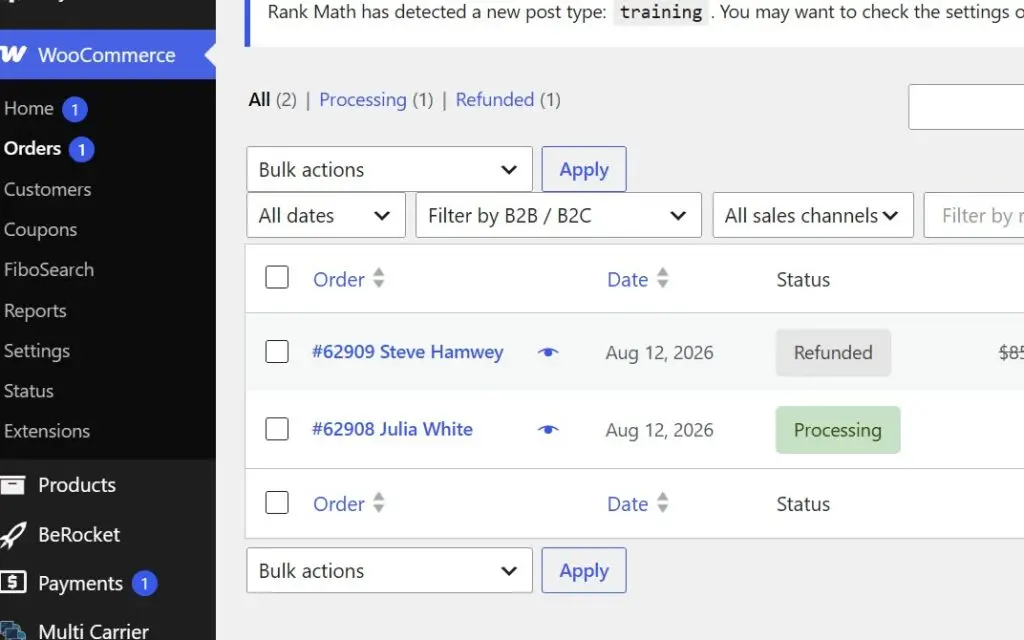
Orders will be displayed by hovering over WooCommerce on the left hand side of the menu bar and click on orders.
Click the order number to view full details
Order page shows:
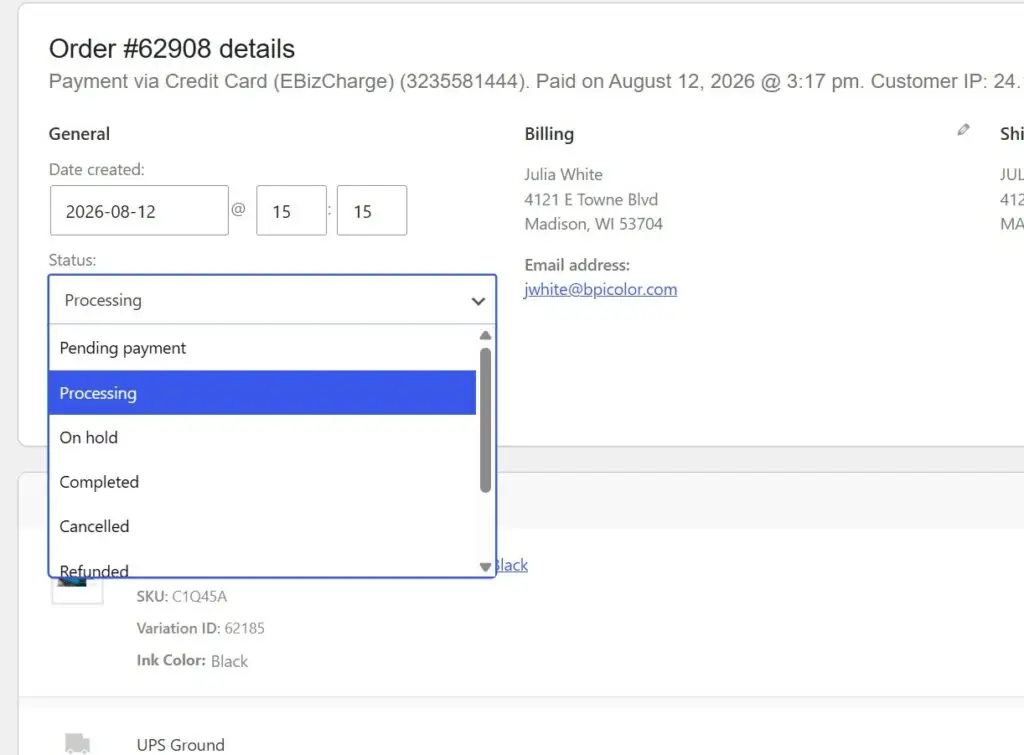
Customer name and billing/shipping address
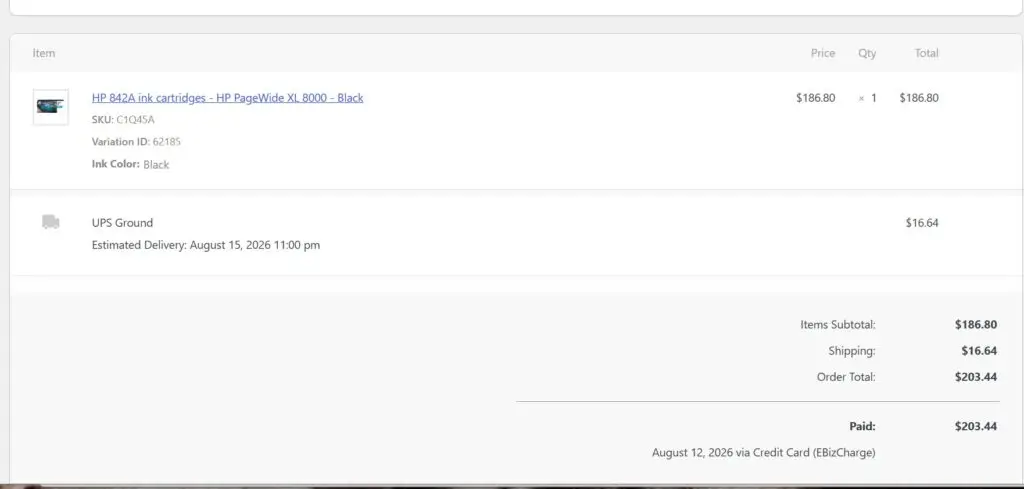
Items ordered (product name, SKU, quantity, price per item, line total)
B2B King info: Customer’s group assignment (visible in order meta or customer profile)
Subtotal, shipping, taxes, total
Payment status
Current order status
Verify Order Details
This website uses variations of products. Make sure you are packing the right product. You may have to go to the variations of the product itself to view variations of the product if something doesn’t match up.
Check that items and quantities match what was intended
Verify the price reflects the correct group discount (B2B King applies discount at checkout automatically, so the price shown should be the group price, not list price)
Confirm shipping address is complete and correct
Order Status
At this time you can change the order status.
Status dropdown is at top right of order (default: Pending Payment)
Click edit pencil icon on a line item to change quantity or remove
Add item: Use “Add item” button, select product, enter quantity
Recalculate totals if manual changes were made
Process Payment
Payment status shows under Billing section
If payment pending and received, mark as Paid (depends on payment method)
Some payment gateways auto-mark paid; others require manual confirmation
Generate / Send Order Confirmation
Order confirmation email is sent automatically at checkout
To resend: Look for “Send order confirmation” or similar button/link (may be in order actions or require a plugin)
B2B Notes
Customer’s group tier is applied at checkout. The price shown in the order is the final group price—no additional discount calculation needed.
If you need to change a customer’s group, edit the customer profile (Users > All Users > Select customer > B2B King group field), not the order itself.
Variable products (like ink cartridges with sizes/colors) show the selected variant in the order line item.